Introduction
As a Power Platform developer, there’s nothing more frustrating than deploying a solution to a new environment, only to find that it doesn’t work as expected. You’ve tested it thoroughly in your development environment, and everything works perfectly. But in the new environment, it’s broken. What’s going on?
More often than not, the answer lies in the unmanaged layer.
Unmanaged layers can cause problems when you’re moving solutions between environments. If you have unmanaged changes for components in your target environment, and you import a solution with those same components in a managed solution. your app will not show the configuration for the components from the managed solution because component changes at the unmanaged layer veto the configuration at the managed layer.
Even with robust DevOps procedures, unmanaged configurations can still pop up due to user error, inheriting a solution before robust controls were in place, etc.
TLDR: How to remove unmanaged changes
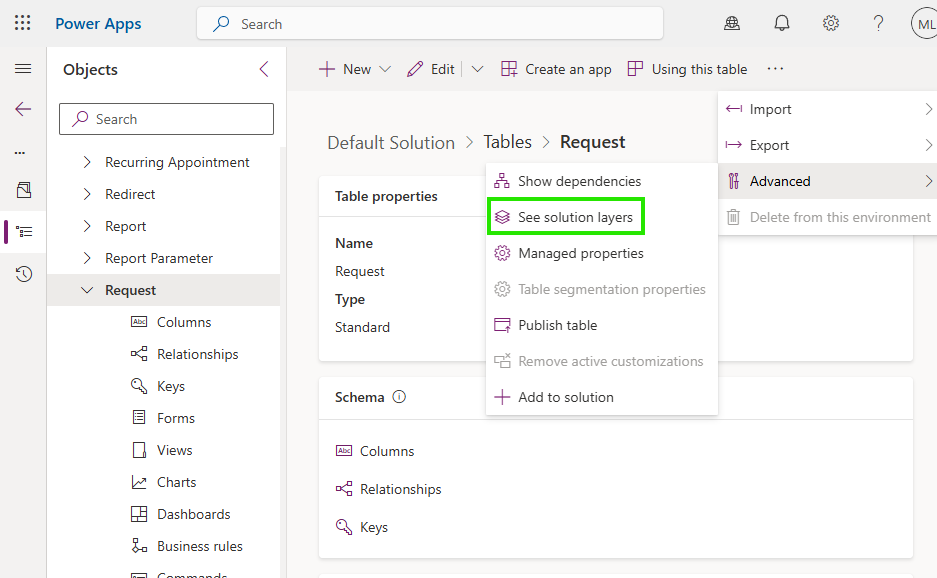
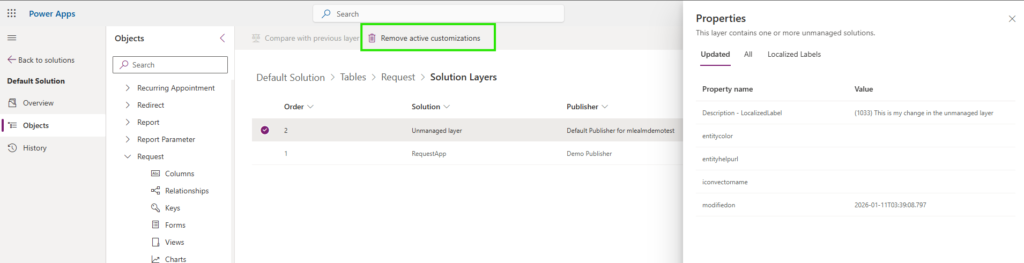
In your solution, find the misbehaving component, and click Advanced -> See Solution Layers
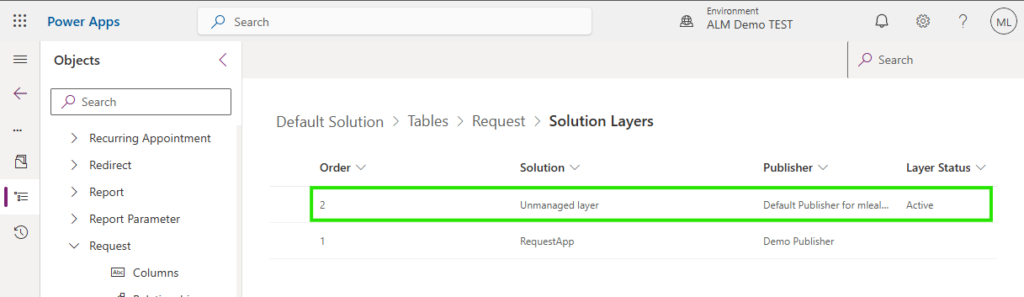
If there is an unmanaged layer, it will appear in the next window.
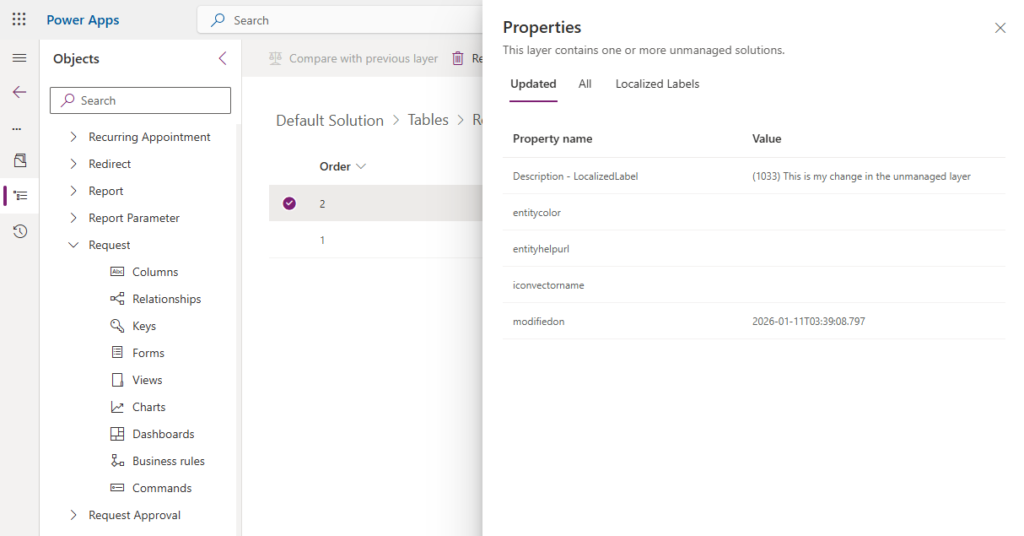
If you click on the layer, it will show you what has changed for that component in the unmanaged layer.
To remove the unmanaged customizations, simply click the Remove active customizations buttons.
Deep Dive – What are the Managed and Unmanaged Layers?
To illustrate this concept, let’s suspend everything we know about the Power Platform, and let’s pretend that the only type of component available is a rectangle component.
Let’s also pretend that the only attribute available for the component is a colour. Not very practical for apps, but very practical for demonstrating layers.
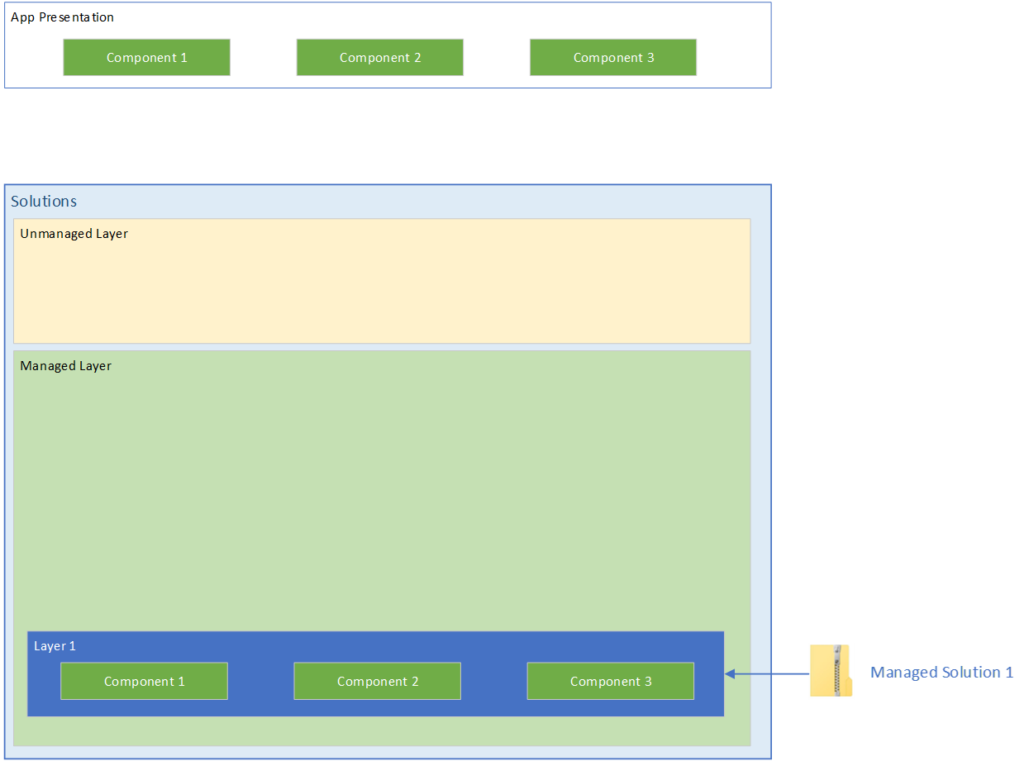
In the illustration above we have a Managed solution that has been in our environment. Inside of the managed solution there are three components.
As this is the only solution in this environment, you can see in the App presentation that the three components are green. So what happens when we start adding more solutions to this environment?
Adding another managed solution
Let’s see what happens when we add a second managed solution
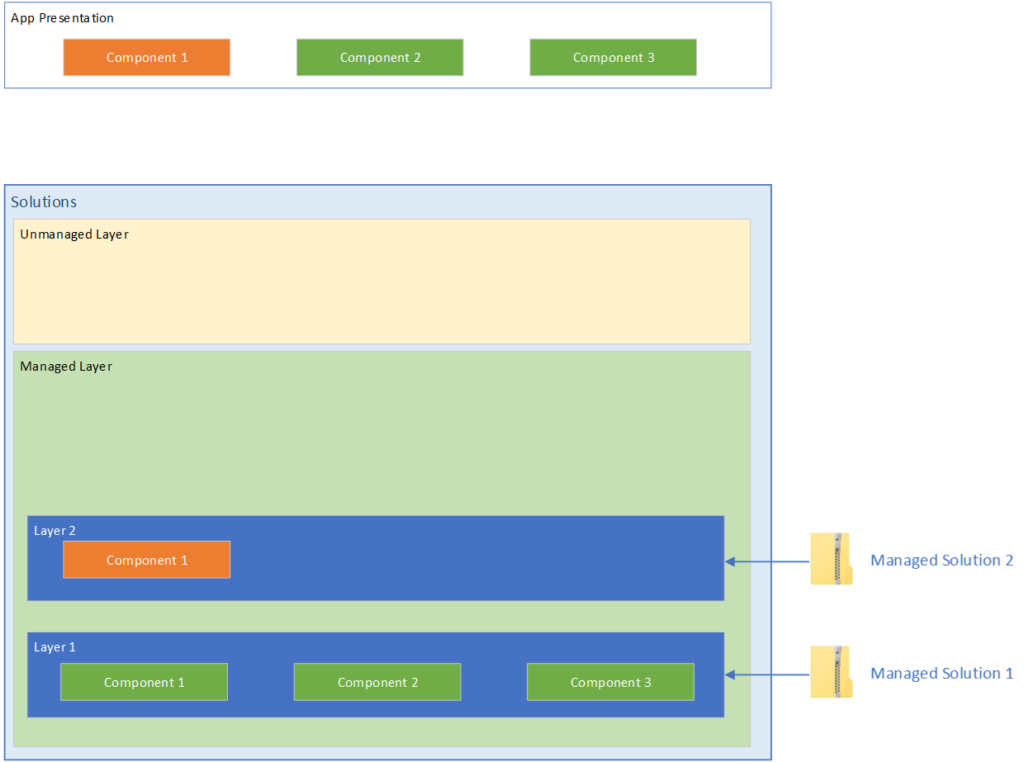
We can see the the second managed solution was added containing another copy of Component 1 with a different color attribute. And in the App Presentation, we can see that the color has changed to orange.
This teaches us a few key points about Managed solutions and Managed layers.
- The way the power platform decides which component configuration to use is literally whichever one is at the top.
- Solution layers are ordered by the import order of the solutions themselves.
And there are some not so obvious points
- Once a solution layer is created, it does not move.
- If you were to make a change to Component 1 in Managed Solution 1 and re-import it, because of the presence of configuration of that component in a higher level, the changes in Managed solution 1 will not be seen by the user.
- The only way to have the configuration in Managed Solution 1 to become what is presented in the App, is to delete Managed Solution 2. Removing a managed solution also removes the associated managed layer.
This behavior will continue on and on with each new managed solution added to the environment. Configurations add up and the behavior of the app changes based on which one is on top.
Introducing the Unmanaged Layer
In this diagram we’ve introduced an unmanaged solution with configuration for some of our components. The Power Platform rules for taking the top most layer still apply here. And as you’ll note, the unmanaged layer is always above the managed layers. This tells us that configuration in the unmanaged layer will always override changes in any managed layer.
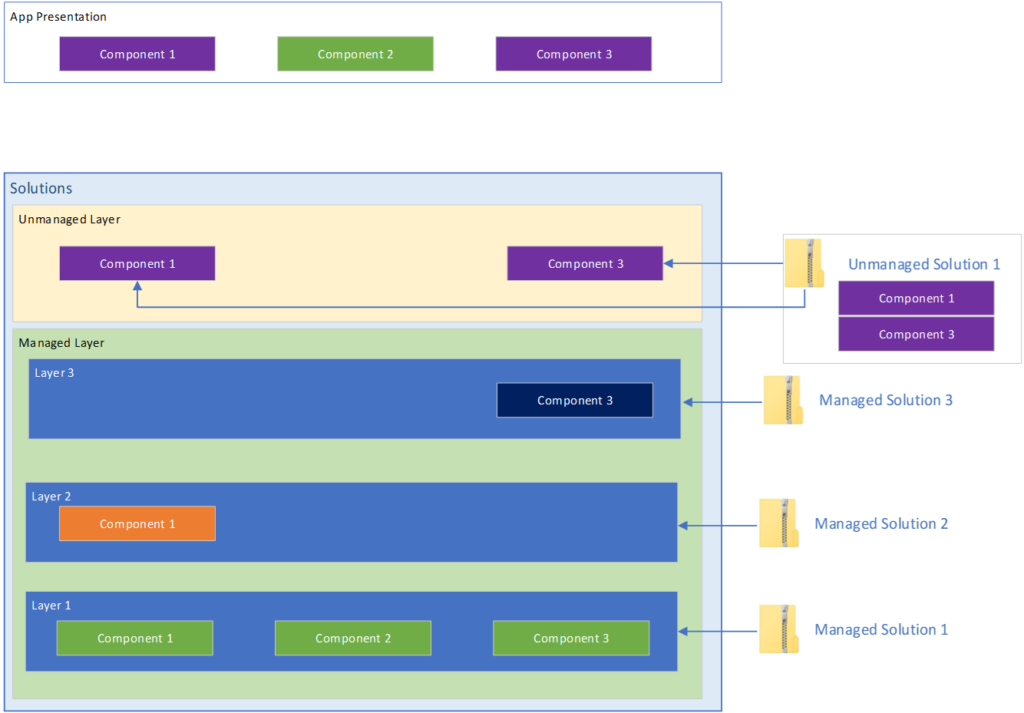
The other important thing to note here is that where bringing in a managed solution, the system will create an independent layer containing a copy of the solution’s configuration, when you import an unmanaged solution, the platform just kind of dumps the components into the unmanaged layer. Instead of ownership over the components, you instead get a reference to the solution component in the unmanaged layer. The solution just points to that component.
This tells us that when we export our unmanaged solution, the system takes a Snapshot of the component’s configuration from the unmanaged layer and exports that.
What happens when you import another unmanaged solution?
As components are only referenced in the unmanaged layer, when you add a new unmanaged solution that contains components that also exist in other unmanaged solutions, the newly imported solution configuration will overwrite the config in the unmanaged layer.
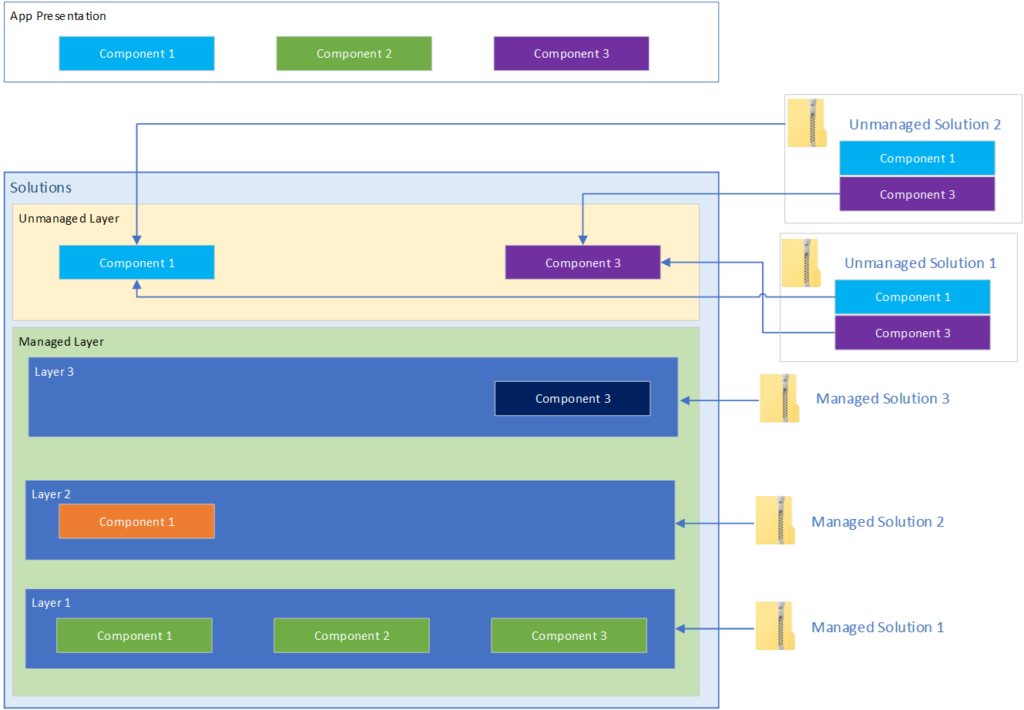
In addition, all unmanaged solutions that reference that component will automatically be updated.
Deleting unmanaged solutions
When you delete an unmanaged solution, the configuration remains in the unmanaged layer as it was only ever referenced in an unmanaged solution.
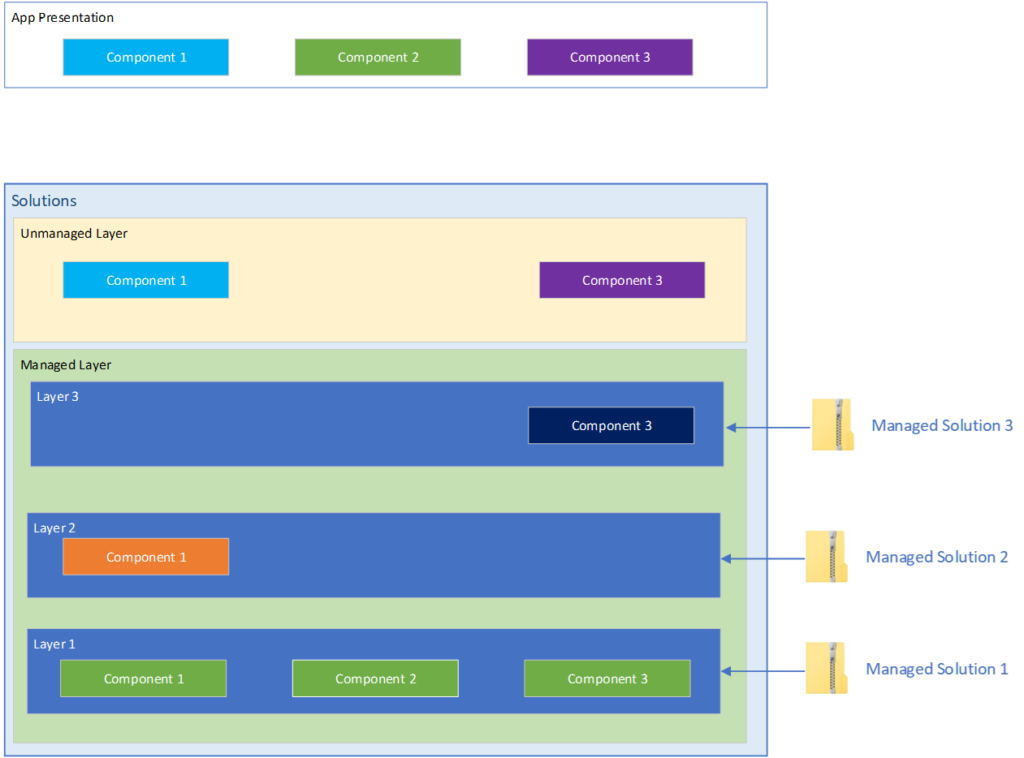
Deleting Managed Solutions
If you delete a managed solution, the configuration goes with it, and the principal of highest layer wins will apply.
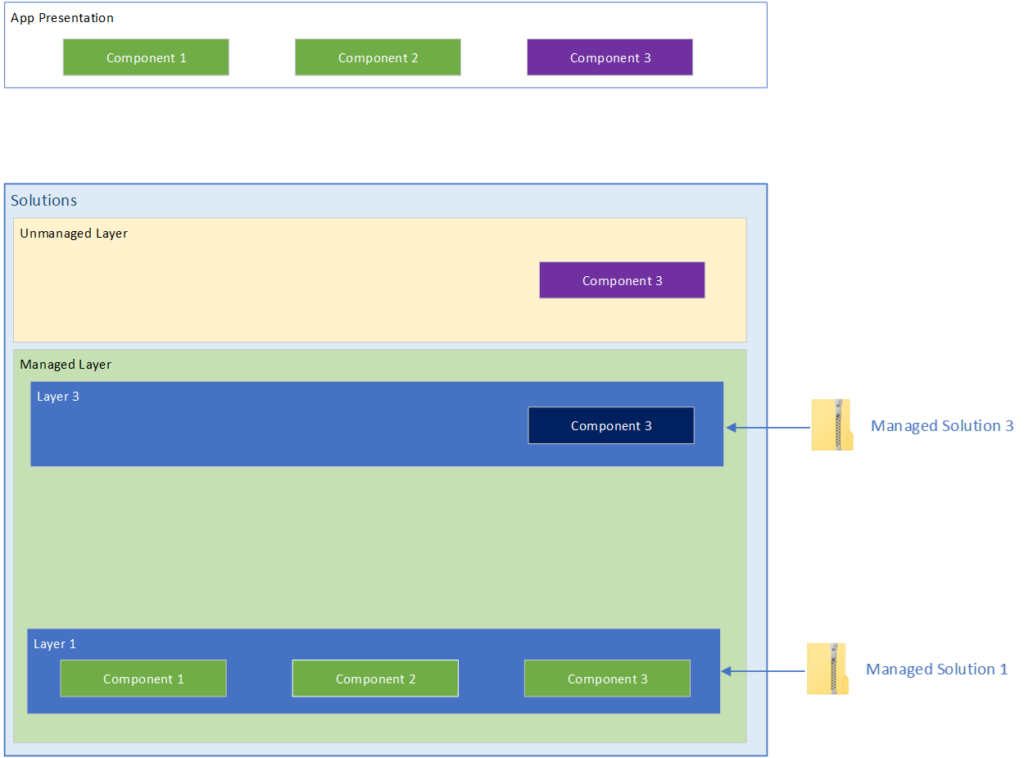
Conclusion
Unmanaged layers can be a major source of frustration for Power Platform developers. But if you understand how they work, and know how to identify and remove them, you can save yourself a lot of time and headache.