In this tip, let’s make sure that your mission critical flows are not in danger of being suspended due to licensing non-compliance.
TLDR: Quick Steps
- Install the Power Apps Administration PowerShell module
- Run the following command:
Get-AdminFlowAtRiskOfSuspension -EnvironmentName <your environment guid>
Overview
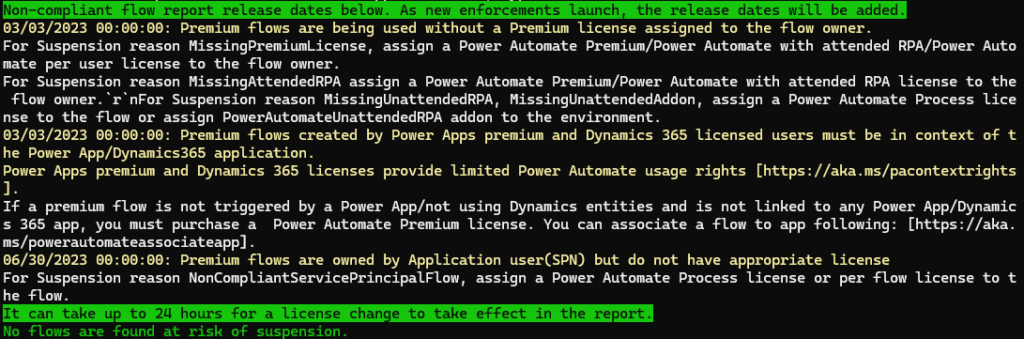
The PowerApps Administration PowerShell module includes a handy little tool to ensure your Power Automate flows are in compliance with licensing requirements. When run, the command will indicate any flows that meet the following non-compliance scenarios:
- Premium flows are being used without a Premium license assigned to the flow owner.
- Premium flows created by Power Apps premium and Dynamics 365 licensed users must be in context of the Power App/Dynamics365 application.
- Premium flows are owned by Application user(SPN) but do not have appropriate license
Detailed Steps
Install the Power Apps Administration PowerShell Module
Open a PowerShell window as administrator, and install the module:
Install-Module -Name Microsoft.PowerApps.Administration.PowerShellRun the Get-AdminFlowAtRiskOfSuspension command
After the Power Apps Administration PowerShell module is installed, run the following command:
Get-AdminFlowAtRiskOfSuspension -EnvironmentName <your environment guid>Once run, if any flows are out of compliance, they will be displayed with the appropriate non-compliance reason.